

Smartphone tracking for police dog handlers
The KATSTrack App provides live GPS tracking on iOS and Android systems that allow handlers to record tracking data in real time and upload it to their KATS account.
The app provides for K9 track layers (decoys) to lay out tracks to assist in training which can be sent to a K9 team for the purposes of checking the accuracy of the dog.
Tracks can be replayed in the App itself or in a larger format on your MDT or office/home computer.
For iOS systems, the KATSTrack App can be downloaded from the Apple Store at:
https://apps.apple.com/us/app/katstrack/id6745687664
or for ANDROID download from Google Play at:
https://play.google.com/store/apps/details?id=com.mehrdadnet.katstrack
Tracking APP Guide

Start a Track
When you first log into the app, it will open directly to the tracking page.
The map you see will depend on your sendings. Initially, you will likely see a street map, which you can change to satellite view or hybrid. This displays satellite view. The opening screen is designed so that you select your options after the track is done to m
When you first log into the app, it will open directly to the tracking page.
The map you see will depend on your sendings. Initially, you will likely see a street map, which you can change to satellite view or hybrid. This displays satellite view. The opening screen is designed so that you select your options after the track is done to minimize your time activating the app and getting on track. The small blue dot will indicate your current location. To start a track, simply hold down the large green button for one second.
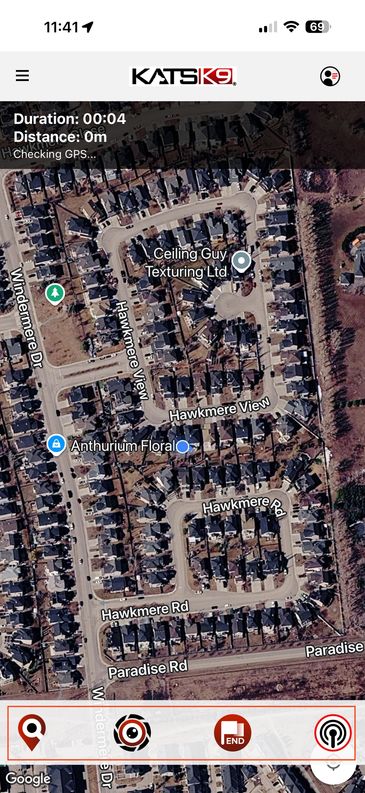
Tracking Screen
When the tracking screen opens, you will be presented options at the bottom of the screen. This screen is being displayed in hybrid mode, combining satellite view with overlaid street and business names.
The icons at the bottom of the screen provide you the following functions:
1. The PIN allows you to drop a pin at any point along the t
When the tracking screen opens, you will be presented options at the bottom of the screen. This screen is being displayed in hybrid mode, combining satellite view with overlaid street and business names.
The icons at the bottom of the screen provide you the following functions:
1. The PIN allows you to drop a pin at any point along the track. This may be used for any purpose.
2. The second icon is your camera icon. It will open your camera so you can take photographs of evidence or any articles that were placed for training.
3. The End button stops the track so you can save it. It is at this point you will be given a screen that allows you to save it as a training track, whether you are the track layer or the K9 team, or whether it is a live incident track.
4. The fourth button is not yet active and is currently there as a place holder for a future function we are considering to introduce to the app.
Menu Options
Menu Options
Menu Options
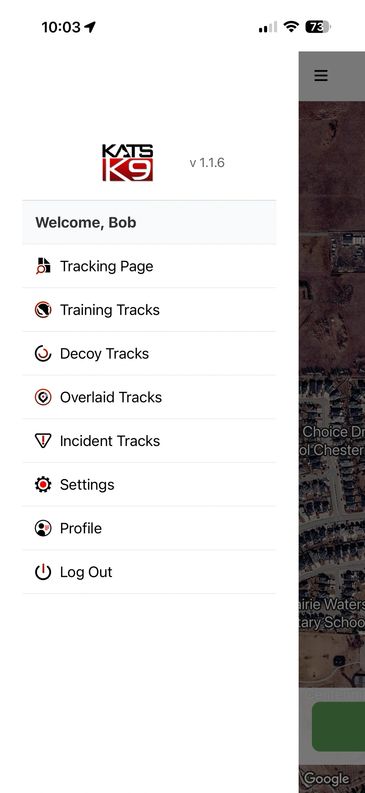
Clicking on the three bars in the upper left hand corner will bring up the options available.
1. Tracking Page will take you back to the opening tracking screen.
2. Training Tracks is where the training tracks of the K9 team are listed. This screen will also provide you a button to import tracks that have been sent to you fr
Menu Options
Clicking on the three bars in the upper left hand corner will bring up the options available.
1. Tracking Page will take you back to the opening tracking screen.
2. Training Tracks is where the training tracks of the K9 team are listed. This screen will also provide you a button to import tracks that have been sent to you from a track layer (decoy).
3. Decoy Tracks are where the training tracks of the track layers are stored. It is frorm this screen the track later selects and sends his completed tracks to the K9 team.
4. Overlaid Tracks is a list of all tracks where the track layer's tracks have been overlaid with the K9 team's track. It is on this screen where you will be able to replay the overlaid tracks, or upload your tracks to the main KATS system.
5. Incident Tracks screen are where your case file tracks are saved and can be replayed.
6. The settings selection allows you to adjust your map type, headings, ping intervals etc.
7. The profile button will take you to your profile page. It will display your current profile, but also provides tools for you to be able to send bug reports directly to the programming team. You can also go directly to your profile screen by selecting the profile icon in the upper right hand corner of your screen

Profile Page
Your profile page simply provides your basic profile as well as a number of selections where you can send bug reports directly to our programming team.
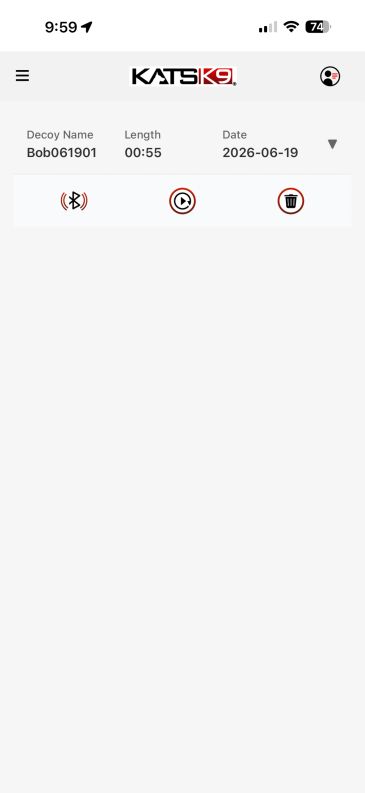
Track Layer File List Screen
This is the Decoy Track Screen. Once you have saved a track, it will be listed here, showing basic info on who the track layer was, the length of the track in time, and the date.
The three icons perform the following functions:
1. Send Icon - This icon is opens options for how you are going to send your decoy (track layer) track to the d
This is the Decoy Track Screen. Once you have saved a track, it will be listed here, showing basic info on who the track layer was, the length of the track in time, and the date.
The three icons perform the following functions:
1. Send Icon - This icon is opens options for how you are going to send your decoy (track layer) track to the dog handler you are laying the track for. It allows you to text, email, airdrop your track to any intended recipient.
2. Play icon - Allows you to replay the track and see details of your laid track.
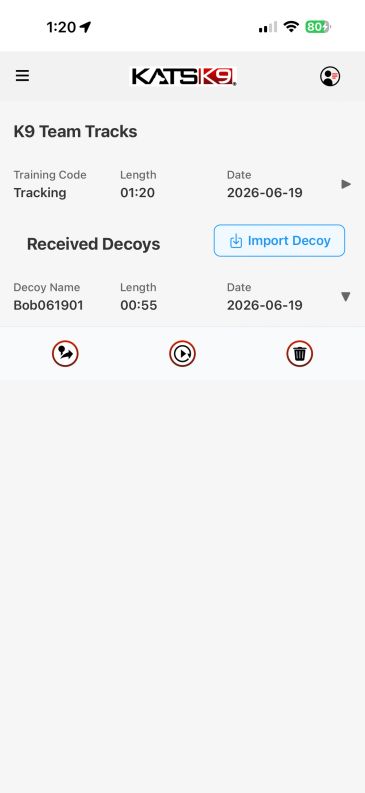
Prep to Combine Files
Prep to Combine Files
This is the K9 Team Tracks screen. Here is where you will see your saved tracks, and where you will be able to import any tracks that have been sent to you by your track layer.
Once you have succesfully imported your track layers file, it will show up on this screen. To combine the two tracks together click on the first icon to begin the
This is the K9 Team Tracks screen. Here is where you will see your saved tracks, and where you will be able to import any tracks that have been sent to you by your track layer.
Once you have succesfully imported your track layers file, it will show up on this screen. To combine the two tracks together click on the first icon to begin the export process. Clicking this icon will open the next screen to begin the process.
In this example, the K9 handler has completed a track and has then pressed the Import Decoy button and received the Track named Bob061901. The next step will be for the handler to click on the received decoy track to open it for the option to combine his track.

Sending Decoy Track to User
Sending Track via User Selection
There are multiple options to transfer files from the Decoy to the K9 Handler. From the Decoy screen tap on the Bluetooth/Wireless option to initiate the transfer.
You will be presented with a screen providing options to send your track directly to a known user in your sytem, or to attach it to a text message or EMail to send.
Note: Wh
There are multiple options to transfer files from the Decoy to the K9 Handler. From the Decoy screen tap on the Bluetooth/Wireless option to initiate the transfer.
You will be presented with a screen providing options to send your track directly to a known user in your sytem, or to attach it to a text message or EMail to send.
Note: When doing self-laid tracks, you can send to yourself, or optionally, save your decoy track to your download folder for retrieval and overlay.
Sending Track via User Selection
Sending Track via User Selection
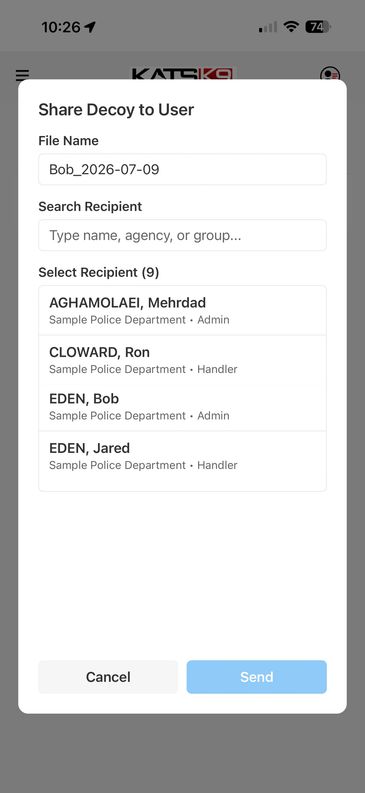
When Share to User is selected you will be presented with a screen for users who you have access to through KATS. Select the K9 handler you are working with and press the Send button to transfer the file.
Once sent, the file is stored on the KATS servers and made available for that user to access and download in order to overlay his/her training track with your decoy track.
Share Options
Share Options
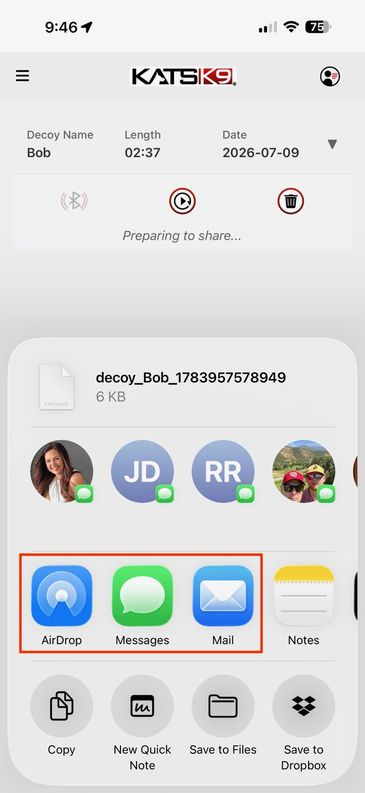
If the person you are laying tracks for is not in your connected user list, you can send your track via any other preferred method using AirDrop, Text or Email. When received, the app automatically places the file in the download folder where the K9 handler can then import it from the app to overlay with their track.
When you see the mess
If the person you are laying tracks for is not in your connected user list, you can send your track via any other preferred method using AirDrop, Text or Email. When received, the app automatically places the file in the download folder where the K9 handler can then import it from the app to overlay with their track.
When you see the message that you have received a track via text, there is no need to download it. Simply open your download folder and retrieve it as it will have already been downloaded for you.
Decoy Track File Selection
Tracks sent by Text will automatically be placed in your phone download folder when received.
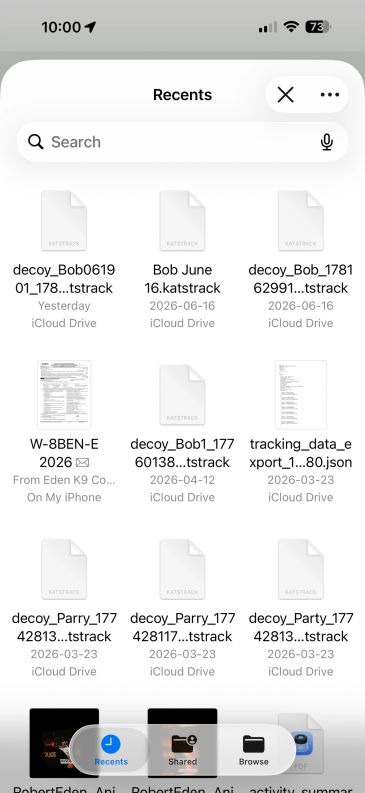
When the handler receives a track via text from their track layer, and selects the option to import the track into his/her file list, the app will open up the file directory where they can select the appropriate file.
Select the appropriate tra
Tracks sent by Text will automatically be placed in your phone download folder when received.
When the handler receives a track via text from their track layer, and selects the option to import the track into his/her file list, the app will open up the file directory where they can select the appropriate file.
Select the appropriate track that was sent by the decoy and it will then show up on the bottom list under the K9 Team's track list, where it can then be selected to combine with the K9 Team track.
The same procedure applies for tracks that are received via EMail and saved by the recipient.
Overlay Tracks
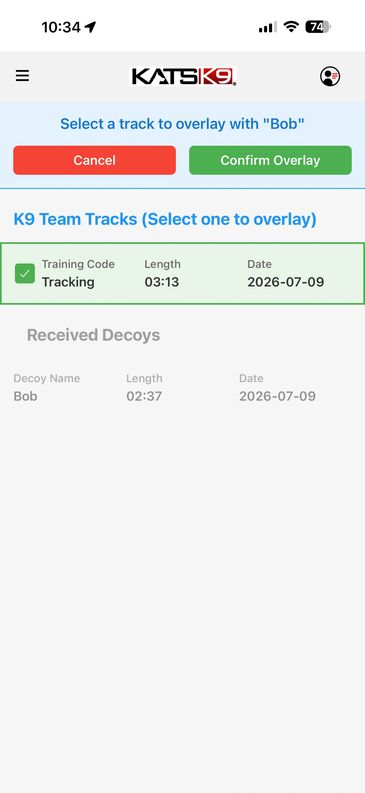
It is at this point you can overlay your K9 team track over the track that was laid by your track layer. This step effectively opens the decoy track and will ask you to select which track is to be overlaid with this one. Place a check mark in the appropriate track and save. The app will then save the combined track in your OVERLAID TRACKS
It is at this point you can overlay your K9 team track over the track that was laid by your track layer. This step effectively opens the decoy track and will ask you to select which track is to be overlaid with this one. Place a check mark in the appropriate track and save. The app will then save the combined track in your OVERLAID TRACKS file, which you can then open to upload it to your main KATS system.
Prep to Combine Files
Prep to Combine Files
Once you have overlaid your tracks, go to the Overlaid Tracks section and click on the overlaid track you wish to upload. It will open with an upload icon on the right hand side (shown here in the red box). Clicking on this icon will start the proces to upload your file to KATS.
You can also replay your overlaid track to view on your phone.
Decoy Track File Selection
When you review on your phone, you will be able to see your team performance. There are a number of details you can view. Once uploaded to KATS however, there are more options available when you go into your file and open the map there. Not only can you replay your tracks in the system, you can play the decoy track, the track layers trac
When you review on your phone, you will be able to see your team performance. There are a number of details you can view. Once uploaded to KATS however, there are more options available when you go into your file and open the map there. Not only can you replay your tracks in the system, you can play the decoy track, the track layers track or combined tracks. You can also change the map view on the fly, replay in increments at different speeds and if needed for court, print the overlaid track.